Searching and Filtering in the Grid Gallery
A quick orientation to the Key.Art interface.
Written By Nils Bremdal-Vinell
Last updated 6 months ago
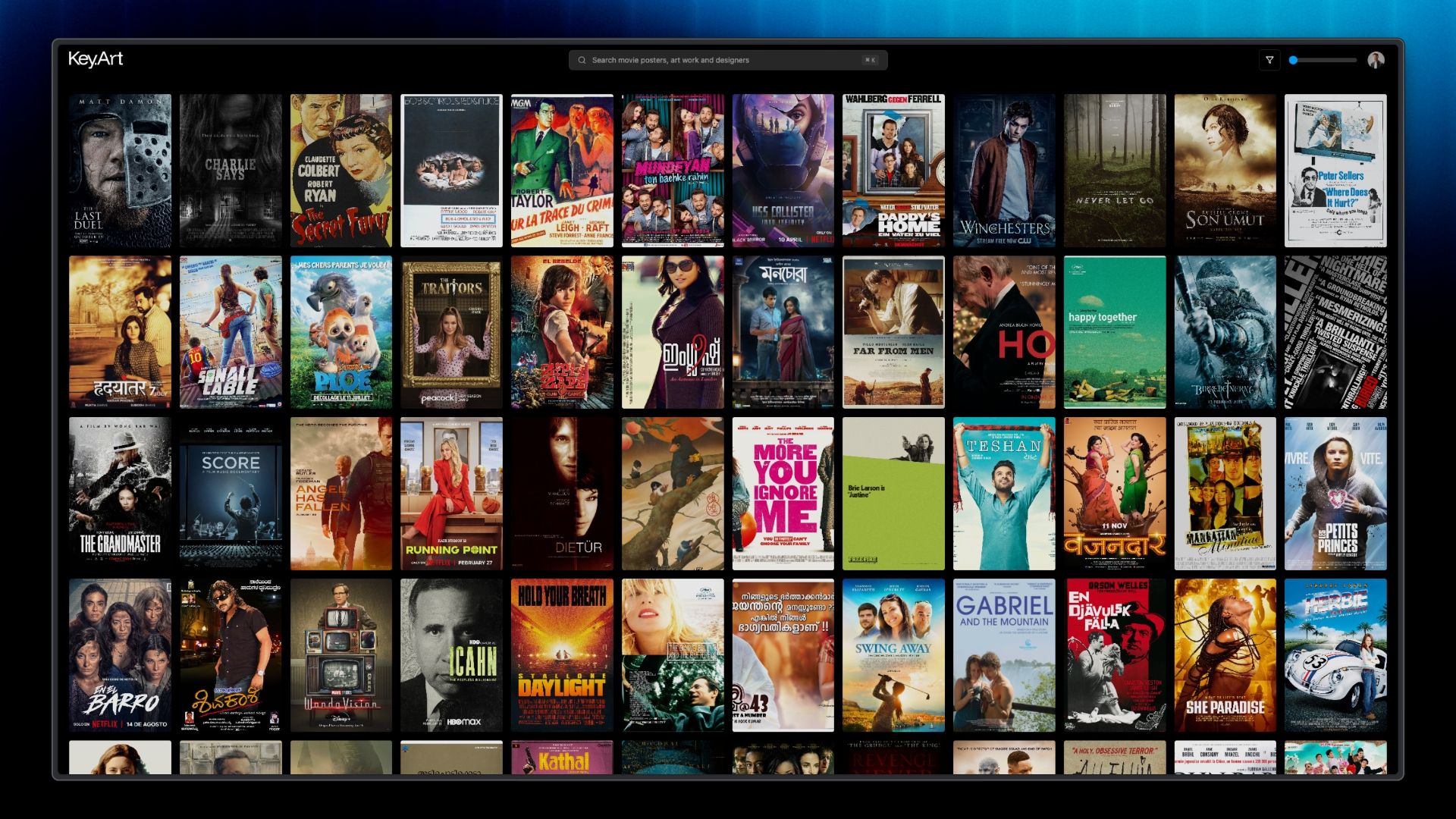
When you open Key art, you'll see a grid view of posters. At the top you'll find the header, which includes a search bar in the center, a filtering button, a zoom slider and the user menu in the top right corner.
Poster Search
You can start searching right from the homepage using the search bar. You can also open the search box at any time using command+k (Mac) or ctrl+k (Windows) button on your keyboard to open the search box.
There are two search modes: Text search and AI search.
Text search

In text search mode, you can search for titles using matching keywords. For example, typing "Brad Pitt" will return posters whose metadata contains those exact words. It's fast, predictable and precise.
AI search

AI search is a powerful feature that helps you find posters based on vibe, mood, color palette, or visual similarity, not just by movie title or genre tags. Try queries like:
“find posters with red titles”
“find minimalistic posters”
“find posters with painterly aesthetics”
“find posters with bold neon colors”
Learn more: AI search
Filtering
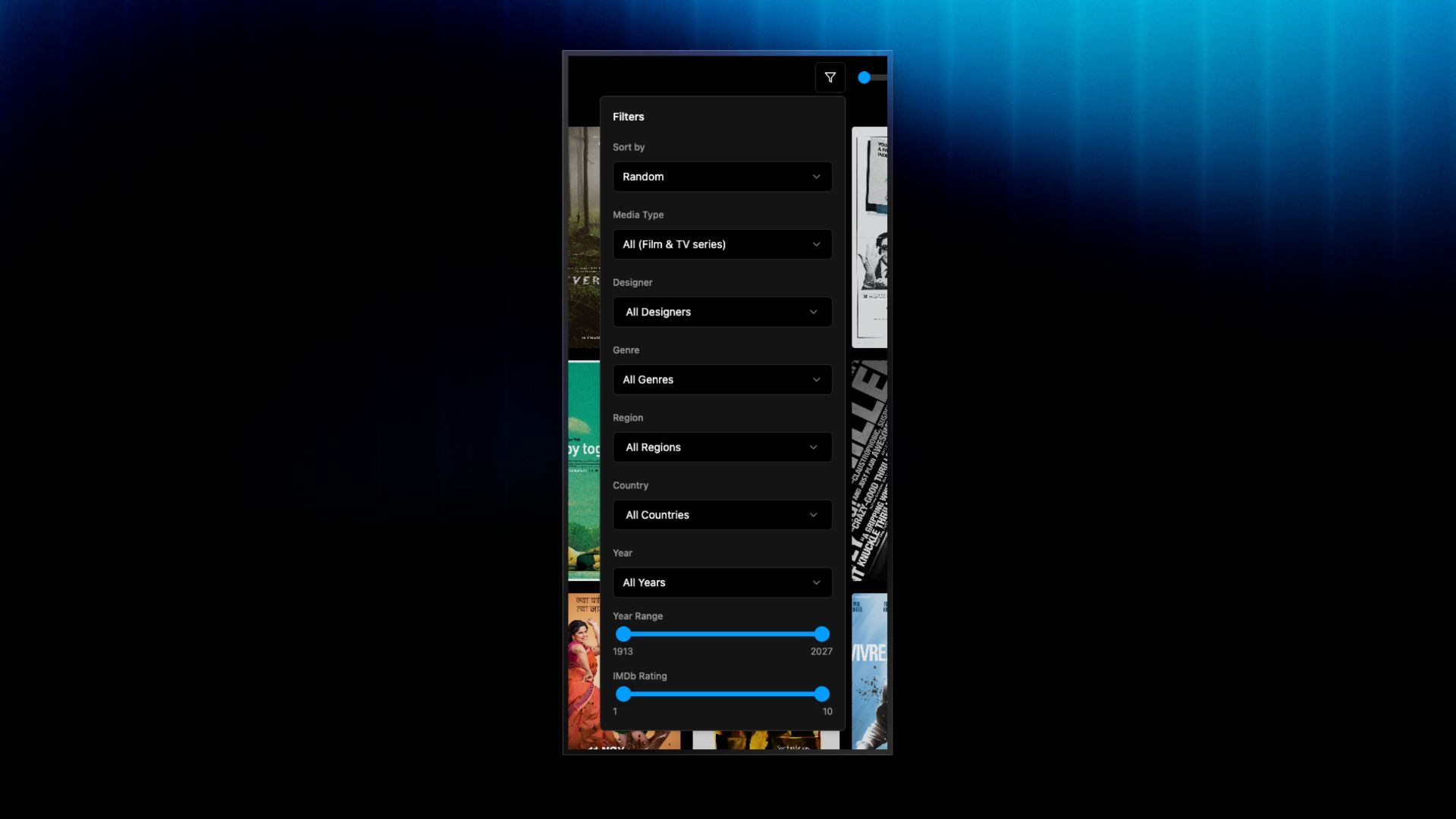
Filters give you precise control over what the gallery shows you. Open the filter panel at any time using the filter icon in the top-right corner. It works independently of search, so you can browse the full archive by category without typing a query, or layer filters on top of a search to tighten your results.
The available filters are:
Sort by (Random, Recently added, Top Rated and popular)
Media Type (Film, TV series, or both)
Designer
Genre
Region
Country
Year
Year Range
IMDb Rating
Filters stack freely. Combine as many as you need for example, filtering to Japanese horror films from the 1970s with an IMDb rating above 7 and the gallery updates instantly. Each filter can be adjusted or reset individually, or cleared all at once to start fresh.
Zoom Slider
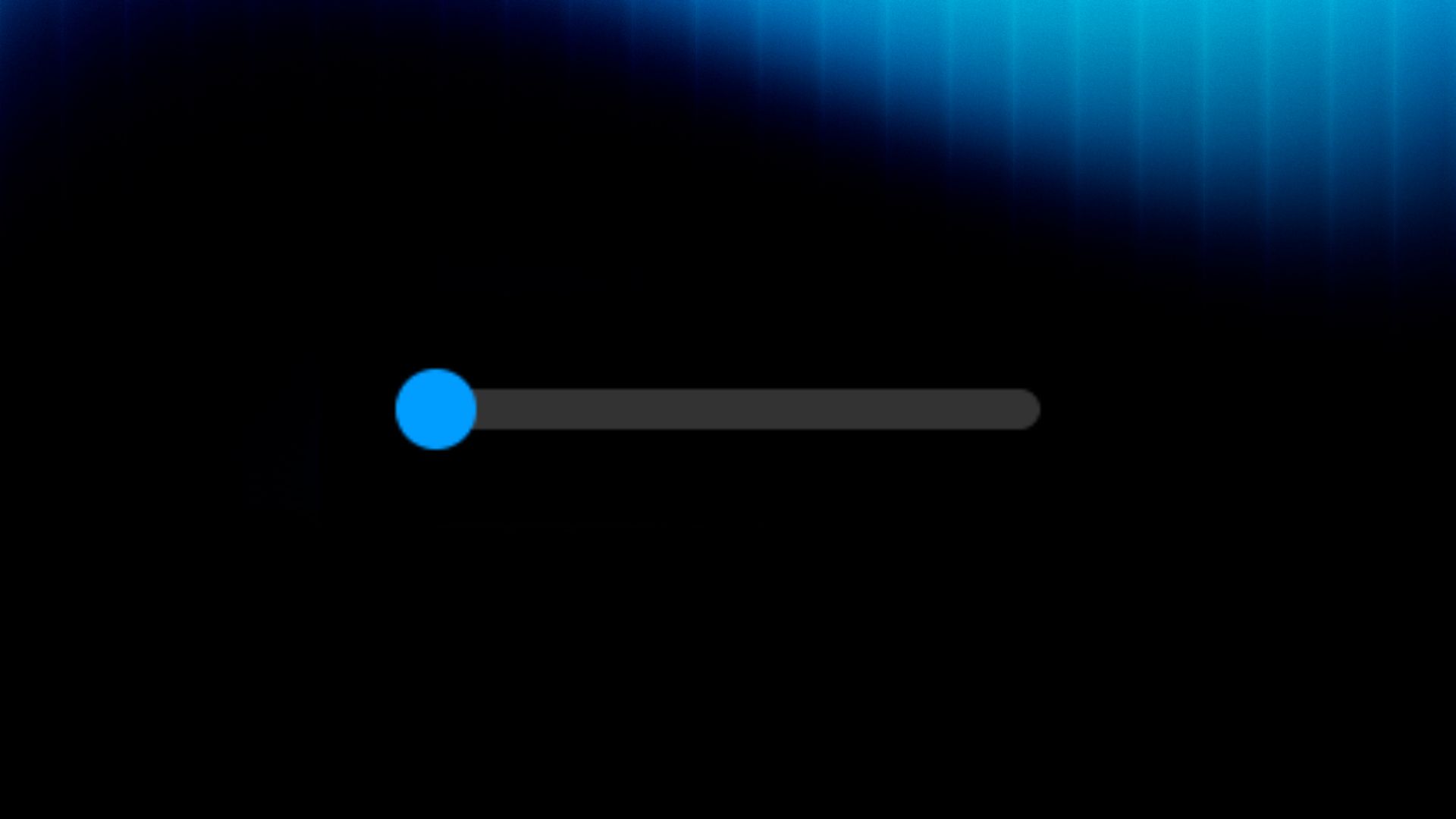
The zoom slider in the top-right corner changes how big the posters appear in the gallery. Left position (default) shows the most posters in the grid view. Slide right to zoom in and get a better look at the details. Find whatever zoom view works best for how you like to browse.

User menu
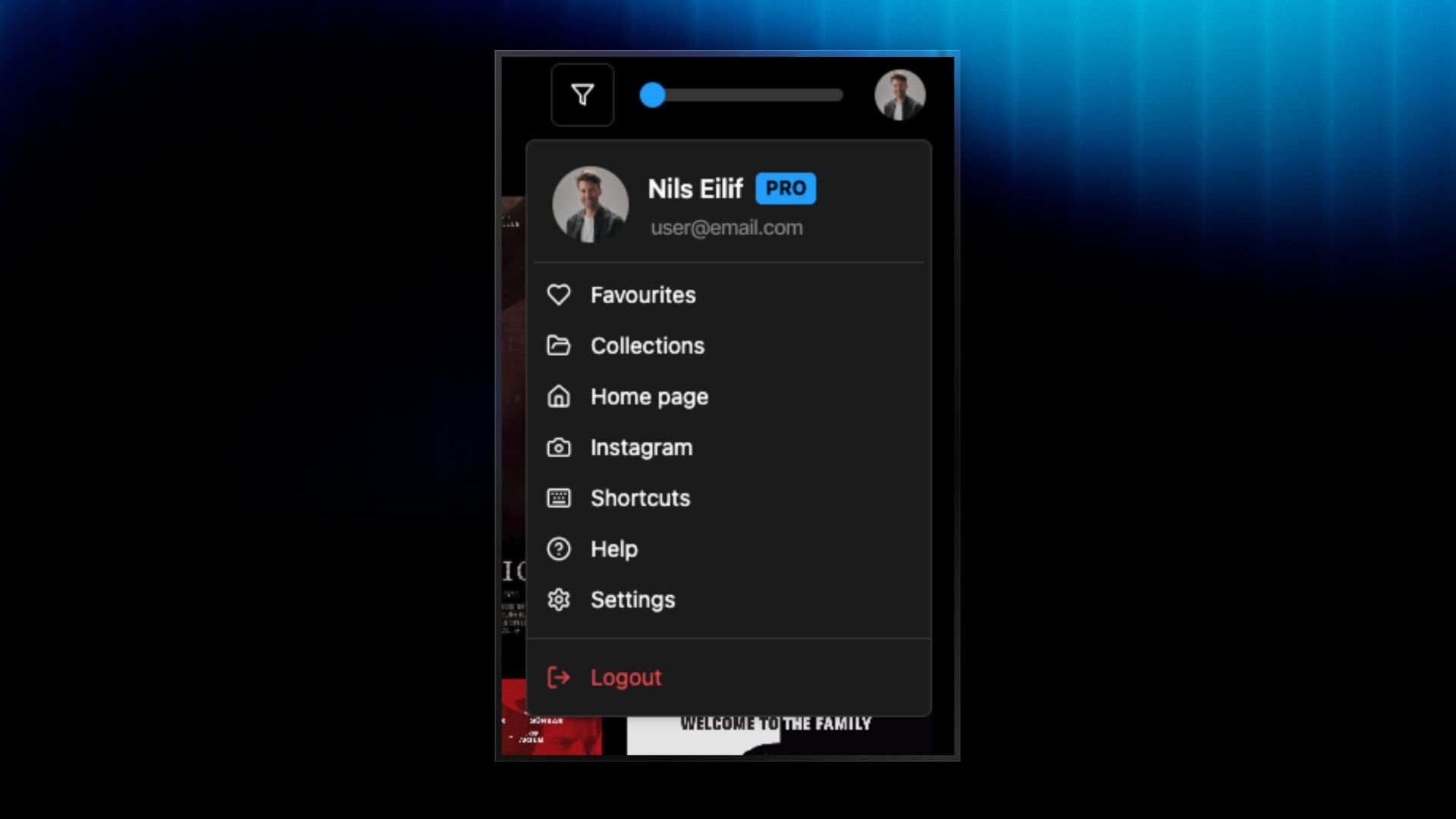
Click your profile picture in the top-right corner to open the account menu. From here you can jump to your Favourites and Collections, head back to the Home page, visit your Instagram, check keyboard Shortcuts, get Help, or head into Settings. Hit Logout at the bottom when you're done.